
Calendar Colors and Fonts
From the home page dashboard, click on "Calendar Colors & Fonts."

Your calendar will already be set to default. You may choose between preset themes or customize your calendar manually.
1. To utilize a theme, click on the hyperlinks underneath the roller brush. When you select a theme, it will display in the preview section to show what your calendar will look like.

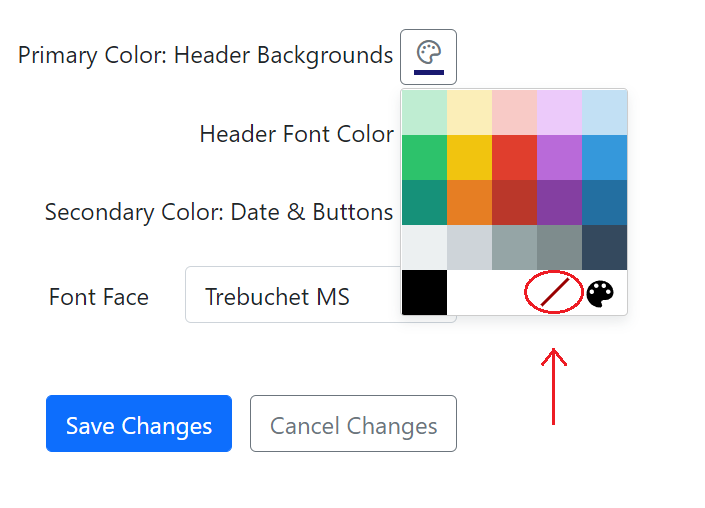
2. To customize manually, select your primary color, header font color, secondary color, and font face by clicking on the buttons to the right of the text.

A note about fonts
– if you want a condensed font, we recommend Tahoma.
– If you wish for a wider letter spacing, we recommend Verdana.
– Our calendar service does not support non-English alphabets at this time.
When customizing, a basic color palette will appear that you may choose from. If you want more color options, click the shadowed paint palette button to display the color picker.

If you have specific "brand" colors for your church's logo or website, you can enter a hex color here.
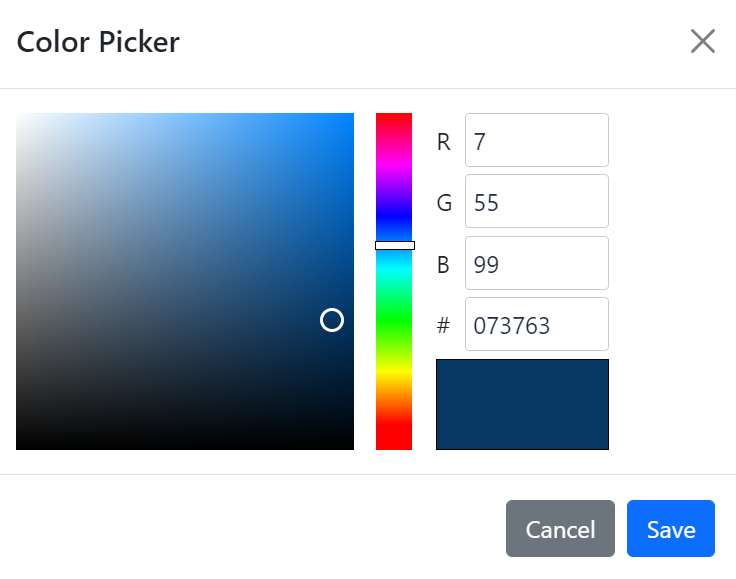
The color picker is also available when editing events to change the font color for each event.
Can the font of event titles be bigger?
While the calendar doesn’t currently allow changing the font size to be larger, you can select different font styles. Some fonts appear larger and easier to read than others, especially clean sans-serif options. A great one to try is Verdana.
You may also find that shortening event titles and using strong color contrast improves readability.
Since the calendar is viewed in a browser window, the browser’s zoom feature can be used to enlarge the view - which enlarges the font too.